
After the interview: review, reconcile and send to Brains
This page is for Facilitators. Once people have finished their interviews, there are four steps:
- Review each interview and confirm its answers.
- Send each interview's answers to your Brains, one Brain or several.
- Reconcile answers across the Topic, where people said different things, and commit the agreed answers.
- Check the results in each Brain.
Nothing reaches a Brain until a Facilitator confirms or approves it. The interviewee never sees any of this.
For setting up and running the interviews, see Running interviews.
1. Review each interview
Open the interview from the Topic's page or the left bar. Do this for every interview in the Topic. If several Facilitators share the work, each reviews the interviews they take on.
Find older notifications
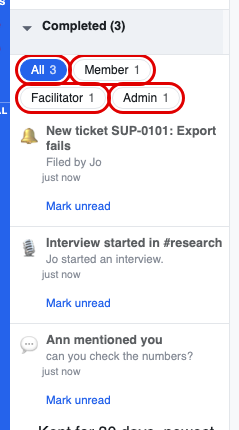
Notifications you have cleared move to Completed at the bottom of the notifications panel. To find the ones about your Facilitator work, such as an interview starting, pick Facilitator above the list. The other choices are All, Member, Admin and, for platform staff only, Super Admin. Each shows how many notifications it holds, you only see the choices that apply to you, and the app remembers your pick.
Read the review note
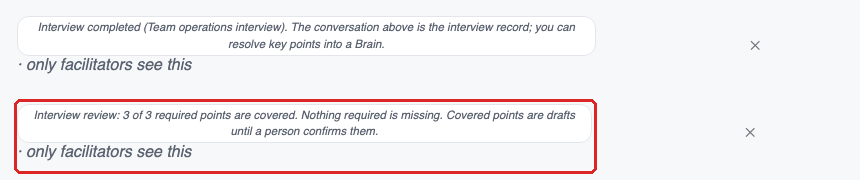
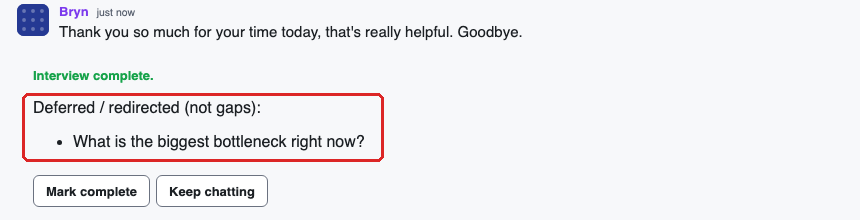
When an interview ends, the chat gets a review note that only Facilitators see. It says how many required items were covered and that covered items are drafts until someone confirms them. If anything was passed on to someone else, the close note lists it under Deferred / redirected (not gaps), apart from real gaps, so you know who to follow up with.
Check the summary and statements
- Press Review & confirm at the top of the chat.
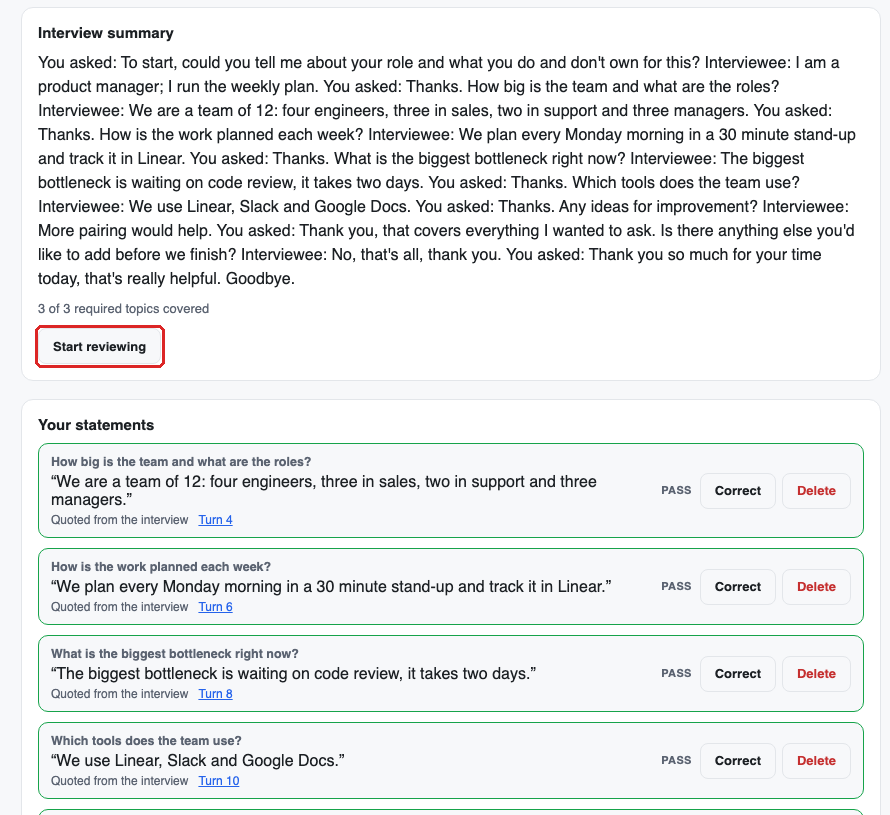
- Read the Interview summary, then press Start reviewing and Confirm summary when it's right.
- Below it, each statement taken from the interview shows the checklist question it answers and a link to the turn it was quoted from. Press Correct to fix one, or Delete to drop it.
Confirm the drafted Answers
- Back in the chat, press Resolve chat at the top right.
- The Resolve this chat box lists any item that still needs an answer, with the interviewer's draft. Press Confirm on each draft that's right.
- If you need to close the chat with an item still open, tick Complete anyway…. The reason is posted in the chat and recorded.
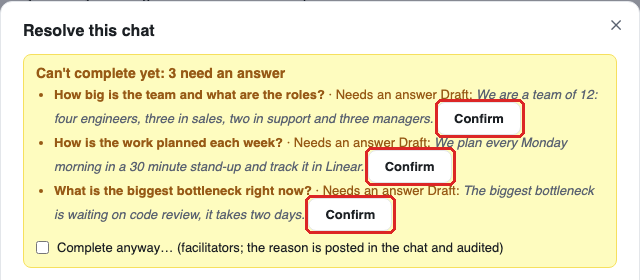
Confirmed Answers show Confirmed by and your name, and the progress ring's "Confirmed" count goes up.
2. Send the answers to your Brains
You can send an interview's answers to as many Brains as you like, for example an Operations Brain and a People Brain. Make the Brains first, with the + next to Brains in the left bar.
There are three things you can send. Use whichever you need.
Confirmed Answers
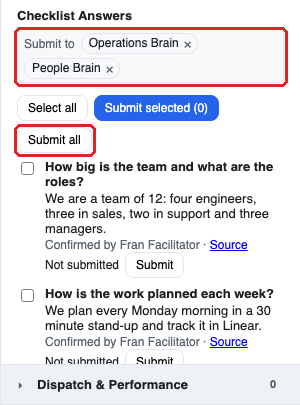
- Open the chat's side panel and find Checklist Answers (under Findings).
- In Submit to, pick each Brain. You can pick more than one.
- Press Submit all, or tick some Answers and press Submit selected.
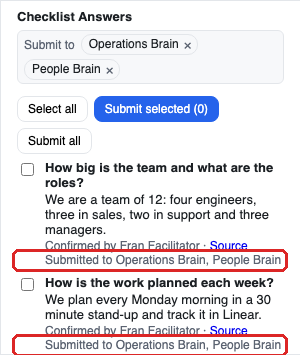
Each Answer then reads Submitted to with the Brains' names.
The chat's resolution
- Press Resolve chat again.
- Check the Topic line and the Resolution summary (drafted by the AI; edit it so it says what you want kept).
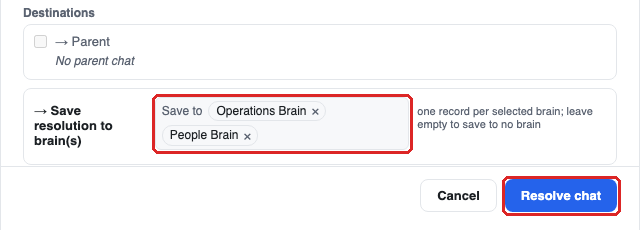
- Under Save resolution to brain(s), pick each Brain in Save to.
- Press Resolve chat.
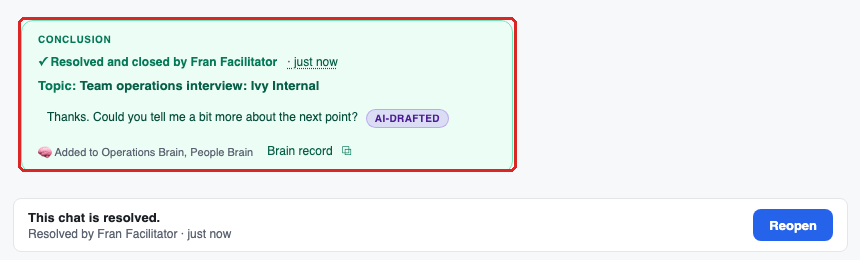
The chat shows a Conclusion with Added to and the Brains' names, and a Reopen button if you need to change anything.
The interviewee's statements
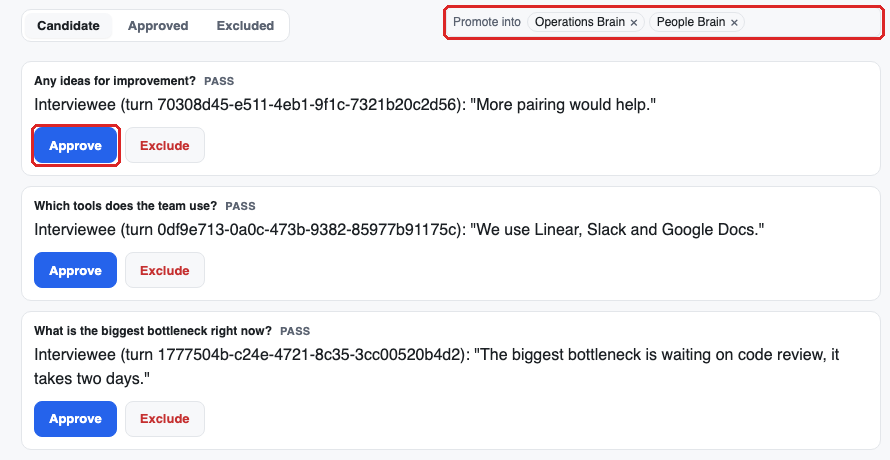
- Open Session actions from the participants control at the top of the chat, then Discovery review → Promotion queue.
- In Promote into, pick each Brain.
- Press Approve on each statement to keep, or Exclude to leave it out.
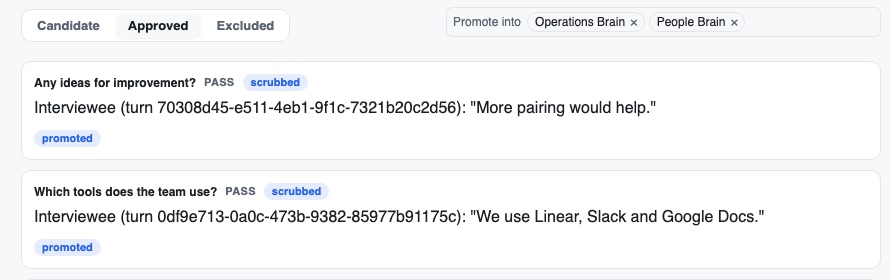
Approved statements move to the Approved tab, marked promoted.
3. Reconcile answers across the Topic
When several people answer the same question differently, reconciling turns their answers into one agreed answer per question. It compares confirmed Answers only, so finish step 1 for every interview first.
Make an interview group
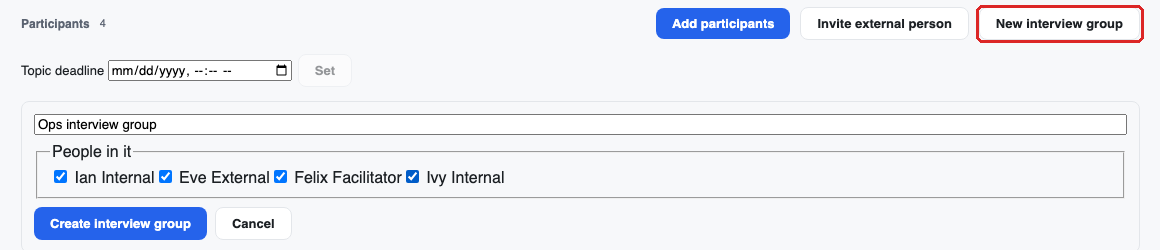
- On the Topic's page, press New interview group.
- Name it and tick the people in it, guests included.
- Press Create interview group.
Decide each question
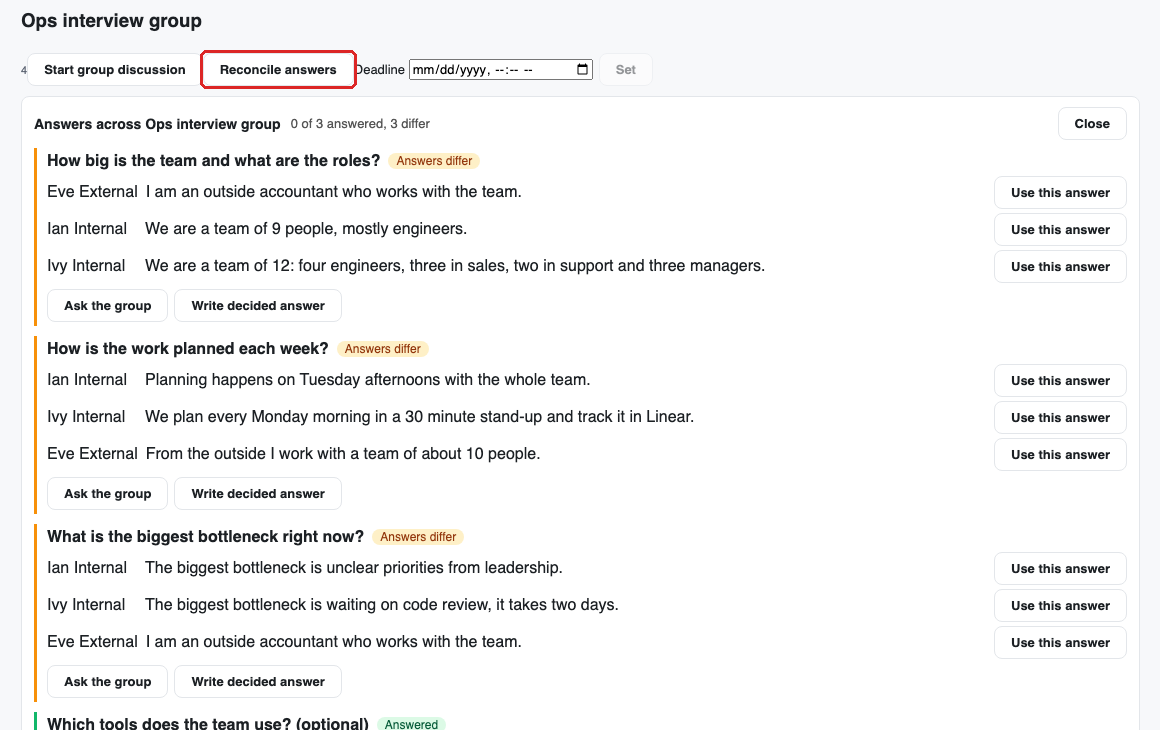
Press Reconcile answers on the group. Each question shows everyone's answer and a state: Unanswered, Answered, Answers differ or Decided. For a question whose answers differ:
- Use this answer on one person's answer, or
- Write decided answer, edit it, and press Save decision, or
- Ask the group, which posts only the question to the group's discussion, never anyone's answer or name.
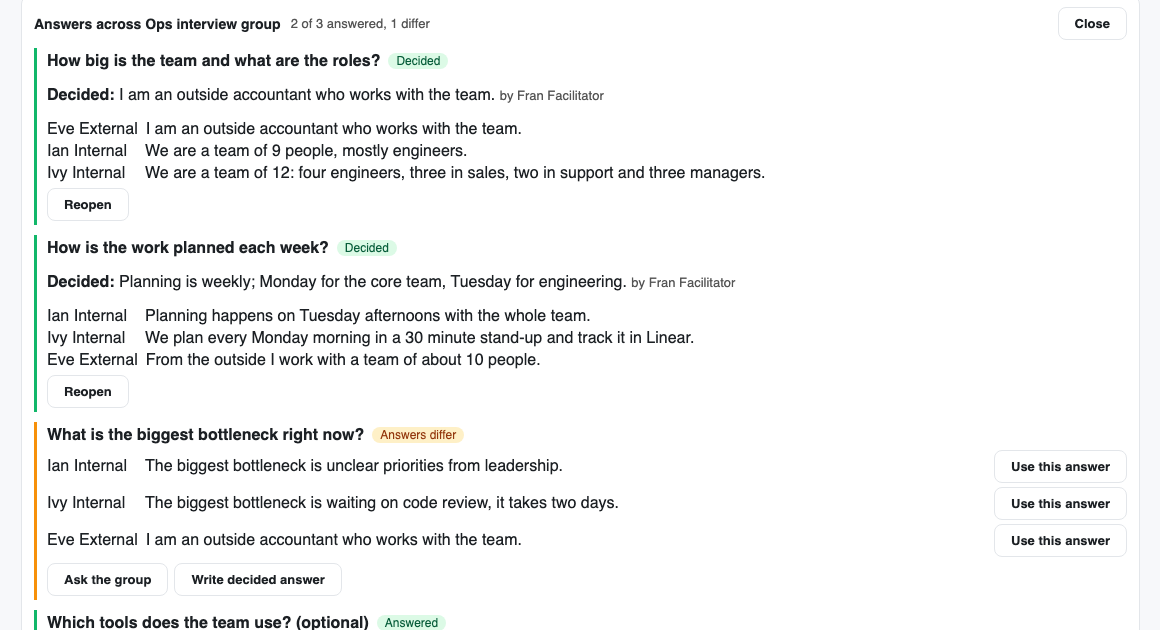
A decided question shows Decided: with the answer and who decided it. Reopen undoes a decision. Any Facilitator on the Topic can decide questions; each decision keeps its own name.
Commit the agreed answers to Brains
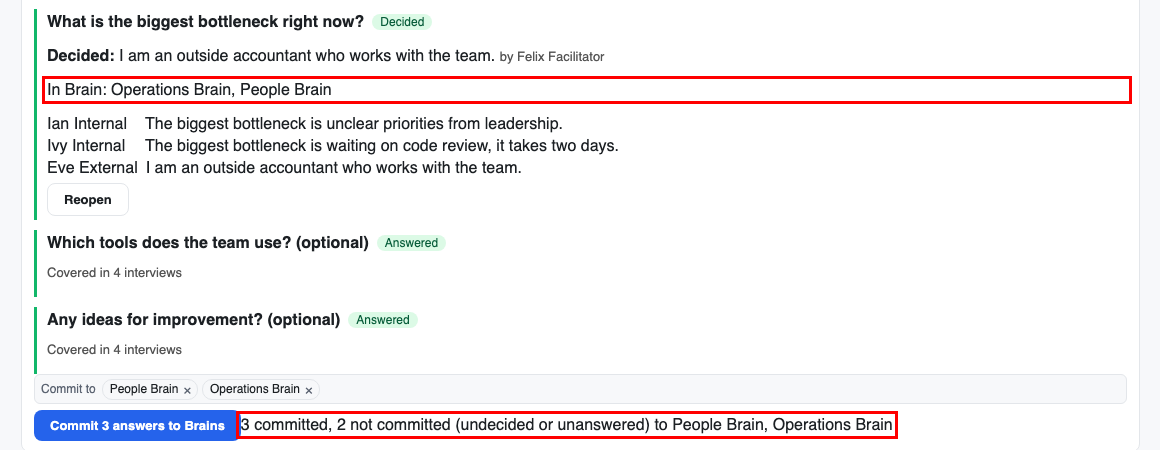
- At the bottom of the panel, pick each Brain in Commit to.
- Press Commit N answers to Brains.
The panel says how many were committed and which questions were left out (undecided or unanswered ones). Each decided question then shows In Brain: with the Brains' names. Committing again later doesn't create duplicates.
4. Check the results in each Brain
- In the left bar, open Brains and pick a Brain.
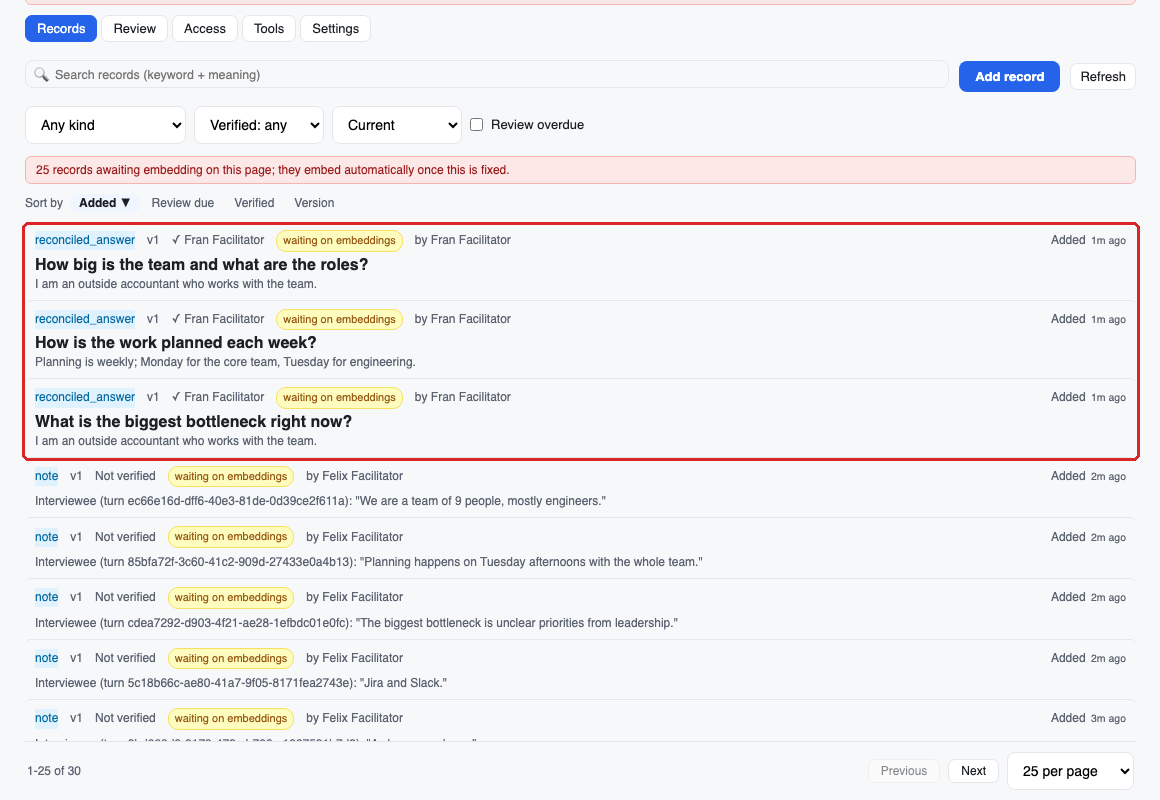
- On the Records tab, look for:
- the agreed answers from reconciliation, each under its question, marked with who decided it;
- the confirmed Answers and the approved statements from each interview;
- the resolution of each chat.
- Use the kind filter (Any kind) to show one kind at a time, and open a record to see where it came from.
Do the same for each Brain you sent answers to. Agreed answers never name the people whose answers were compared.
Who can do this
Only Facilitators can review, reconcile and send answers to Brains. Members can't open another person's Promotion queue or the reconciliation panel. You only see interviews you're allowed to see. A private interview you can't see is left out of reconciliation entirely.