Getting started
Signing in
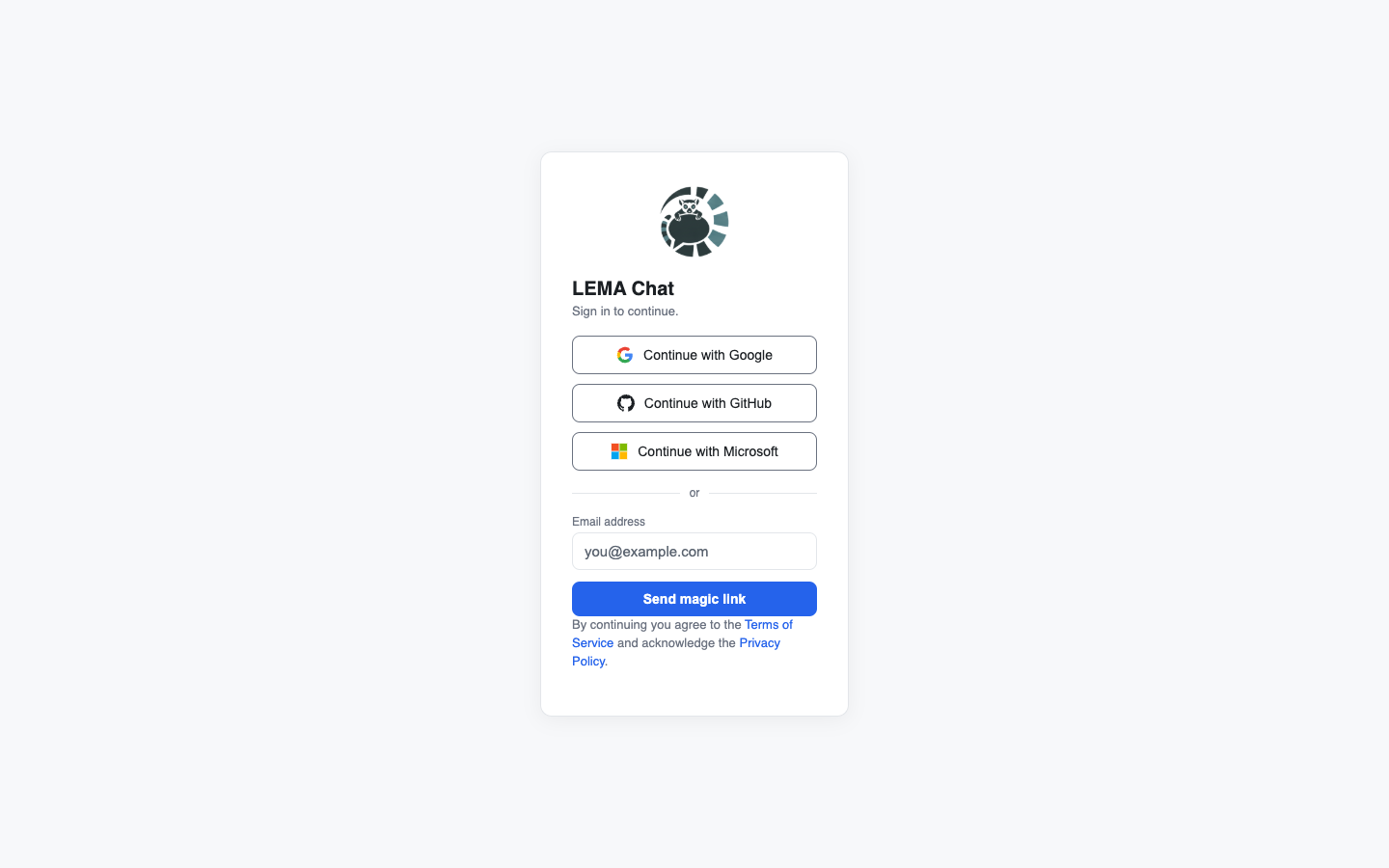
LEMA Chat uses single sign-on. On the login screen, choose one of the connected providers:
- GitHub
- Microsoft / Entra
You'll be sent to that provider, and back to LEMA Chat once you approve. There's no separate password to manage — your identity comes from your provider account.
If your workspace was created by an admin who invited you, you'll land straight in it. If you signed in without an invite, you'll be guided through a short onboarding to create or join a workspace.
Finding your way around
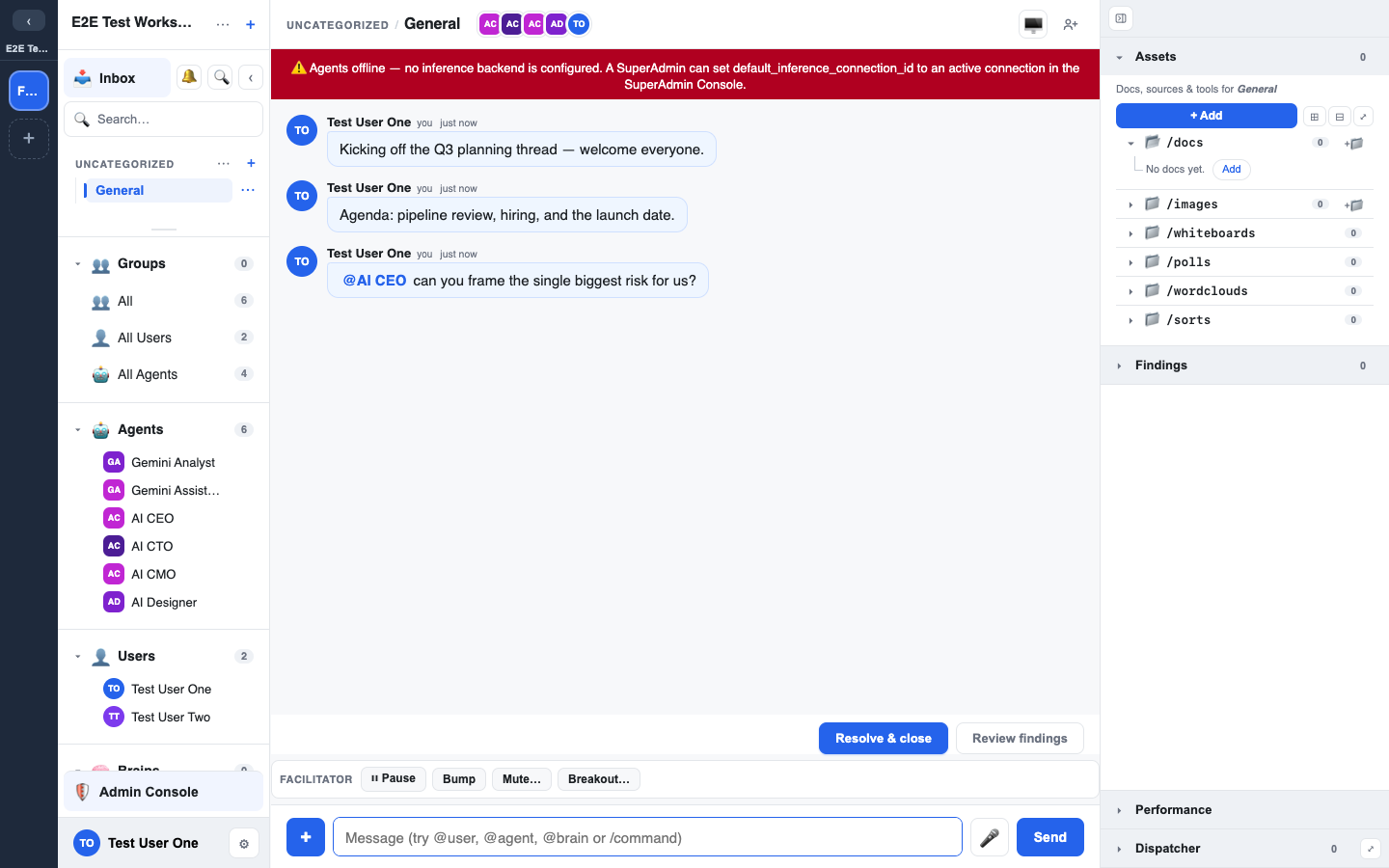
Once you're in, the screen has three regions:
- Left sidebar — your workspaces on the rail, then ten collapsible sections, in this order: Channels (the folder tree of chats), Brains, Groups, Agents, Users, Communities, Assets, Applications, Dashboards, and Courses. Each section remembers whether you left it open or closed. Your name and a ⚙ Settings button sit at the bottom.
- Centre — the main content area. Usually that's the active chat (the message timeline and the composer), but a row in most sections opens a full-page surface here instead: a Brain, a course or lesson, a community channel, a dashboard, the Applications cards, or the workspace's Assets library. Back, Esc, or Close returns you to whatever you were looking at before.
- Right rail — the collaboration panel for the current chat: its Assets (docs, files, canvases, widgets), its Findings, and the dispatch readout.
Where each section takes you:
| Section | What a row opens |
|---|---|
| Channels | The chat itself (or a channel overview) |
| Brains | That Brain's page; the ⚙ on the header opens Manage Brains |
| Groups, Users | The membership rosters |
| Agents | The agent roster; the ⚙ on the header opens Manage Agents |
| Communities | A community channel's feed — see Communities |
| Assets | The workspace-wide Assets library |
| Applications | The external programs your workspace links out to (each opens in a new tab) |
| Dashboards | A dashboard — see Dashboards |
| Courses | The course catalog — see Courses |
Your first message
Click a chat in the left tree, type in the composer at the bottom, and press Enter to send. The composer placeholder hints at what's possible:
try @user, @agent, @brain or /command
- Type @ to mention a person, an agent, or a Brain.
- Type / to open the command menu (polls, canvases, deliberation, and more).
Everything you send is stamped with your name, the time, and the fact that a human wrote it — the same way an agent's messages are stamped as agent. That provenance is what lets the team later ask "why do we believe this?".
Settings
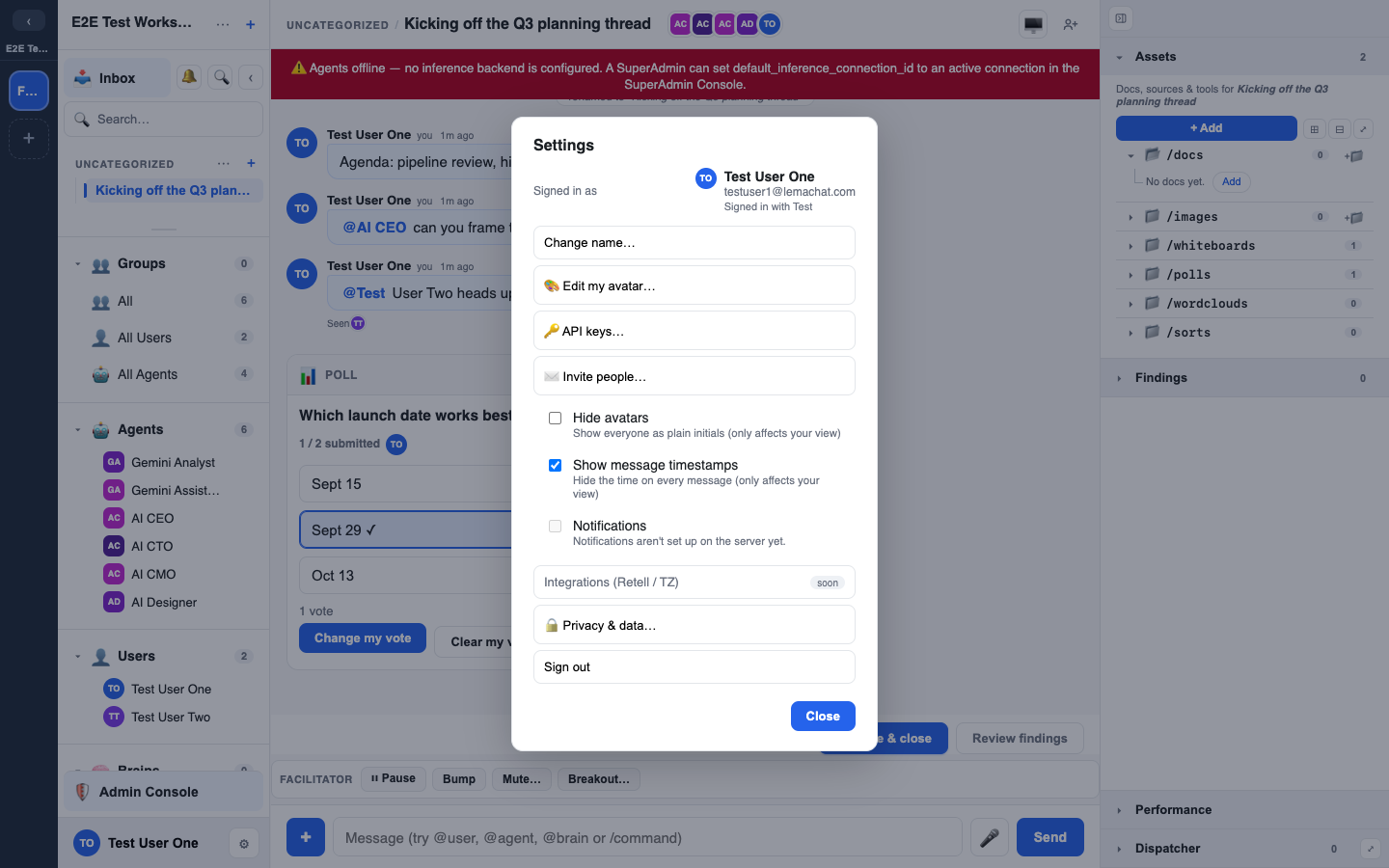
The ⚙ Settings button (bottom-left) opens your personal settings, where you can change your display name, edit your avatar, and manage your personal API keys.